Order Management
All transactions on the Odude Marketplace can be tracked and managed via the Orders page. This page serves both buyers and sellers, providing a transparent view of every booking and purchase.
How to order a product
- Go to the product page
- Click on the “Buy” button
- Follow the prompts to complete the purchase
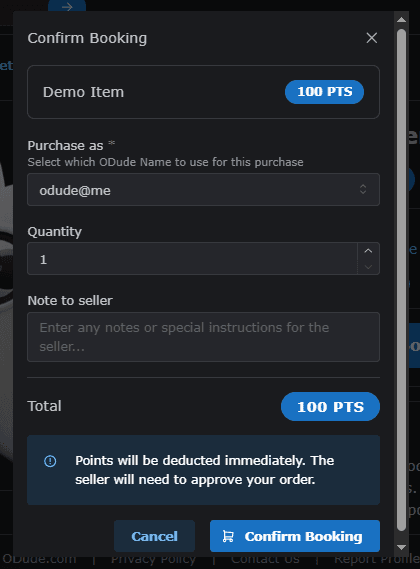
You can access your orders at: https://name.odude.com/market/orders
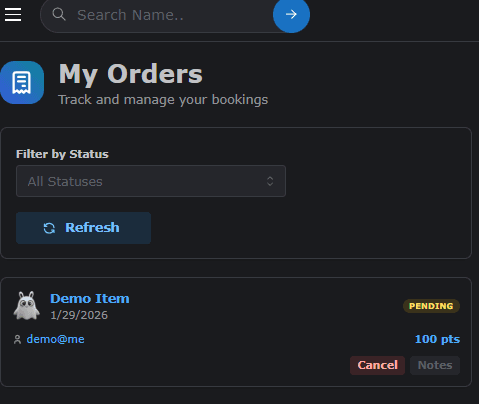
For Buyers: Managing Your Purchases
When you buy or book a product, it appears in your Purchases/My Orders section.
- Order Status: Check if your order is “Pending”, “Processing”, or “Completed”.
- Access Digital Goods: Once an order is marked as completed, you can often find the download links or access codes right here.
- Contact Seller: Reach out to the seller directly if you have questions about your order.
- Receipts: View and download details for your records.
For Sellers: Managing Your Sales
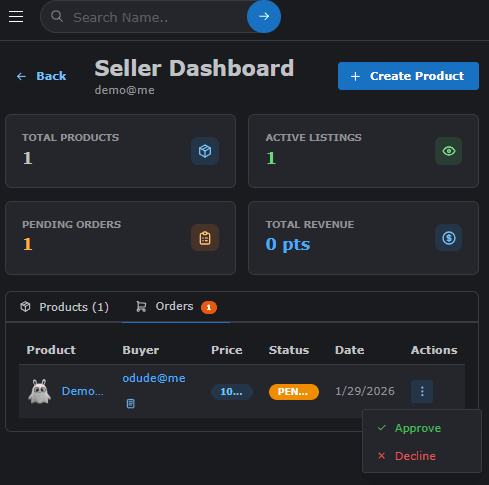
As a seller, the Orders page is where you fulfill your commitments.
- New Bookings: Get notified of new orders that require your attention.
- Fulfillment: Update the status of an order to let the buyer know you are working on it or have delivered the item.
- Order History: Keep a record of all past sales for tax and reporting purposes.
- Buyer Information: Securely view the details provided by the buyer to complete the delivery.
Order Status Workflow
- Created/Pending: The buyer has initiated the order but payment or confirmation is pending.
- Paid/Processing: Payment is confirmed, and the seller should prepare the digital asset.
- Completed: The asset has been delivered, and the transaction is closed.
- Cancelled: The order was terminated by either party.
Last updated on