Managing Bookmarks
Learning how to manage your bookmarks will help you get the most out of the ODude ecosystem.
How to Bookmark an ODude Name
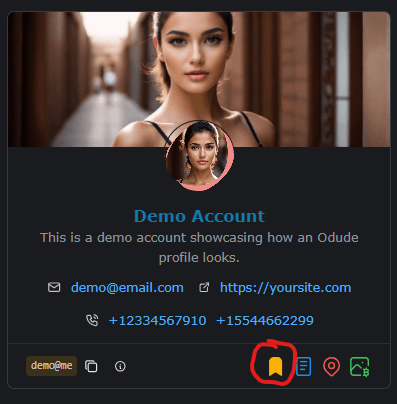
Bookmarking is simple and can be done from any profile card you encounter while browsing:
- Locate the Bookmark Icon (usually a bookmark or ribbon symbol) on the profile card.
- Click the icon.
- You will see a notification confirming the bookmark.
- The icon will change color (usually to yellow/gold) to indicate it is now bookmarked.
- You will see a “Flying Credits” animation indicating you have earned 10 credits.
Viewing your Bookmark List
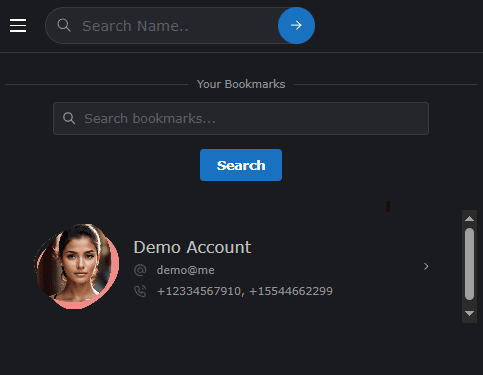
To see all the names you have bookmarked:
- Go to the Main Sidebar or Navigation Menu.
- Select the Bookmarks option.
- This will open a page displaying all your saved names in a grid.
- You can search through your bookmarks using the search bar at the top of the page.
Removing a Bookmark
If you no longer wish to follow a name or keep it in your list:
- Locate the profile in your Bookmarks list or on its public profile.
- Click the Bookmark Icon again.
- The icon will return to its original state (gray/hollow).
- Important: 10 credits will be deducted from your balance, and 10 credits will be deducted from the owner’s balance as well.
Managing Bookmarked Contacts
From the Bookmark page, you can:
- Visit Profiles: Click on any bookmarked card to go directly to that user’s full profile.
- Support Creators: By keeping a bookmark active, you help the creator maintain their credit balance.
- Clean up: Regularly review your bookmarks to keep your list organized and relevant to your interests.
Last updated on